How to Remove a Video Background Without a Green Screen
Last updated: · Written by the RenderAlpha team
Two five-second live-action stock-footage tests, checked November 14, 2026 with FFmpeg 9.0.2. Cases are shown in full, including retained objects and imperfect edges; no model reruns or cutout retouching.
You have already recorded the person, but the room is wrong for the next scene. Before buying a backdrop or recording again, check whether an automatic cutout leaves the subject you actually need. Our two real-footage tests below show why a removed background is not always a finished overlay.
Short answer
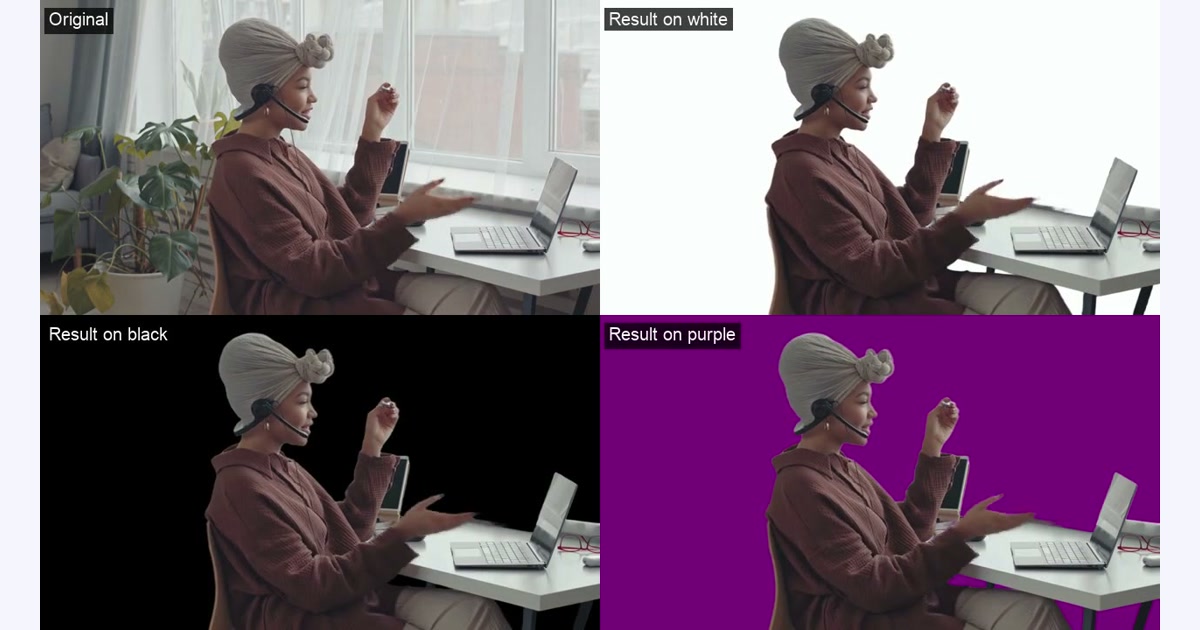
You can remove a video background without a green screen using a model that separates the foreground, rather than deleting one color. Check a difficult frame before processing, then inspect the entire exported clip. In our two five-second tests, the room disappeared, but a laptop and even a desk stayed in the foreground. If you need only the person, those retained objects matter.
Decide what must stay before removing anything
Write down the required foreground: a speaking person alone, a person holding a laptop, or a person together with their workspace. Our tests kept nearby objects as well as the person. That can be useful for one composition and unusable for another.
Use automatic foreground removal for an existing room or street background. A color key removes a chosen color, so it solves a different problem; use the green-screen guide when the footage was actually shot against a flat backdrop. We did not compare the two methods on these clips.
Test 1: loose hair, glasses and a handheld laptop
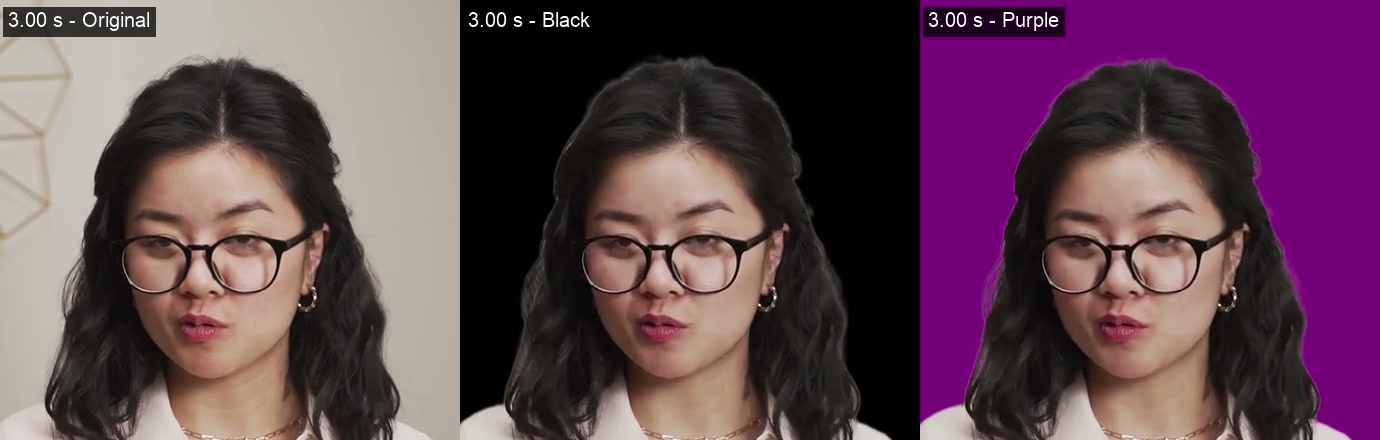
We trimmed seconds 3–8 of a Pexels clip by ANTONI SHKRABA production. The 720×1280 input has 125 frames at 25 fps. Across the frames inspected at 1, 2, 3 and 4 seconds, the room and wall decoration were removed while the person and laptop remained.
At 3 seconds, the hair contour has a pale fringe over black and purple. The glasses and face remain visible, but that does not establish accurate transparency through the lenses. The laptop is retained, so this result does not give you a person-only asset. View the contour over the color you intend to use, rather than judging it against a similar beige wall.
Test 2: moving fingers, a headset and a desk
We used seconds 5–10 of a Pexels clip by Jep Gambardella, resized to 1280×720. Plants and the window disappeared, but the desk, laptop and another screen remained with the person. If the task is to place a floating presenter over a slide, this retained furniture needs further editing.
The open hand at 3 seconds is already blurred in the original. The processed contour is soft, with a light smear against black. The cutout did not turn that motion into a sharply separated hand. A still frame with hands resting on the keyboard would miss this problem; check the moment when they move away.

Try your existing clip without committing the whole recording
Use the original video file, not a screen recording of its player. Check the current upload and duration limits before preparing a long clip. Start with the shortest section that includes the difficult movement.
- Upload the file on the home page and inspect the free single-frame preview. After signing in, choose a frame with a turned head, an extended hand or the object you need preserved.
- Look over both light and dark backgrounds. Check whether anything unwanted stays attached to the person, as the desk did in our second test.
- If that frame is suitable, process the short section with the intended output format. Full-video processing uses paid credits.
- Play the downloaded result through on the destination background. Inspect every hand movement and turn; checking one frame cannot establish consistency across the video.
If the first result is not usable
For retained furniture, first ask whether a rectangular crop can remove it without cutting the person. That is a suggestion to try, not a repair we tested. An object overlapping the body may need an editor with manual masks or a reshoot; this workflow does not offer a brush to select exactly which objects stay.
For a pale hair fringe, inspect the result on your actual scene. For blurred fingers, compare the source before blaming the export format. We did not test sharpening, edge repair or a second model, so we cannot promise that another paid pass will fix either issue.
Take the cutout into your next scene
Our test outputs are portrait WebM and hand-motion WebM. The comparison MP4s above contain solid backgrounds so the examples remain viewable without VP9 alpha playback support.
For a reusable overlay, follow the transparent WebM guide, then the OBS import checks if that is your destination. For an editor, consult the format comparison. We did not import these two clips into OBS or an editor, and this test does not establish compatibility there.
How we tested, and what we did not test
On November 14, 2026, we sent each five-second clip once to Bria VRMBG 3.0 through fal, using the same model and export settings as this site: webm_vp9, Transparent, preserve_audio=true. This was a direct model test, not a test of the website upload and payment flow. Neither source has audio.
FFmpeg 9.0.2 resized the inputs and composited the results; we did not key out a color or repair the cutouts. Both input and output pairs have 125 frames. Decoding the alpha plane found transparent and opaque pixels, rather than relying only on the file tag. We completed browser playback of the comparisons and inspected full-size frames at 1, 2, 3 and 4 seconds, including the crops shown above.
The portrait request took 28.3 seconds and returned 2.19 MB; the desk request took 27.8 seconds and returned 1.52 MB. Those are two observed request-to-download timings and decimal file sizes, not a typical speed or size guarantee. We did not quantify flicker, compare models, or test smoke, glass, fast sports, live cameras or long recordings. We also did not make a hand-drawn reference mask, so there is no accuracy percentage.
Frequently asked questions
Can I remove the background from a video I already recorded?
Yes, that is the task these two tests demonstrate. Inspect what remains in the foreground as well as what disappears; the desk example kept objects that a person-only overlay would not want.
Do I need a plain wall behind me?
Not for the foreground-removal workflow shown here: one input includes plants, a window and a desk. Two clips do not establish results for every room, outfit or lighting condition.
Does a good free preview mean the whole clip will look good?
No. The preview covers one frame and uses a separate image model. A moving hand or a head turn can reveal a problem absent from that frame. Play the processed section before using it in your project.
How do I put the person on a different background?
Export a format that carries transparency, then place it above the destination scene in a compatible tool. Our export guide explains that step; downloading the comparison MP4 from this article will also download its solid test backgrounds.
Sources
Primary sources we checked. The date is when we last opened each page.
- fal: Bria VRMBG 3.0 API: video input, output codecs, Transparent setting and audio option (Retrieved )
- MDN: Web video codec guide: codec and alpha support; separate from our cutout-quality observations (Retrieved )
- Pexels: ANTONI SHKRABA production, portrait source: source published May 30, 2021; downloaded November 14, 2026; seconds 3–8 used (Retrieved )
- Pexels: Jep Gambardella, desk source: source published April 26, 2021; downloaded November 14, 2026; seconds 5–10 used (Retrieved )
- Pexels License: permits modification and website use; the people shown do not endorse RenderAlpha (Retrieved )